
Finance & Accounting
Comparison price $15.00$9.99 33% off
↗
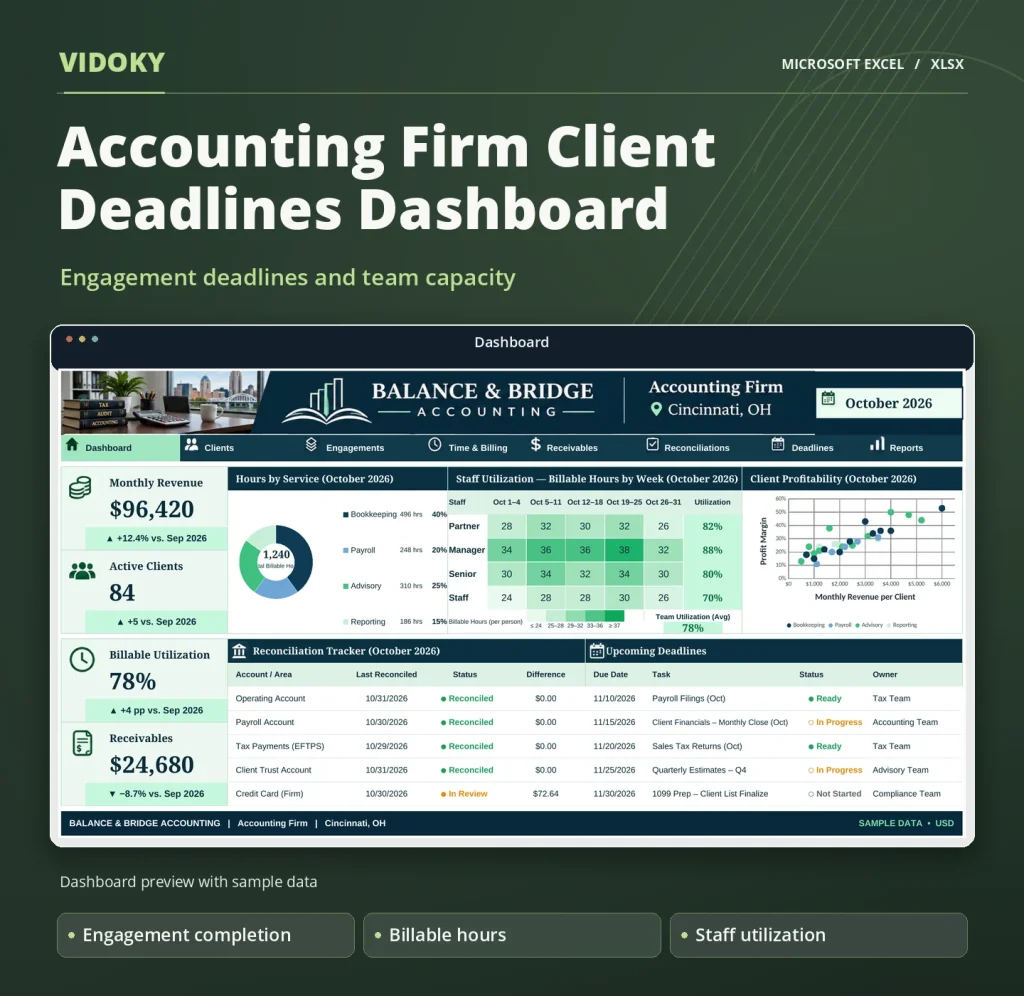
Preview is illustrative with fictional sample data. Open the downloaded workbook in desktop Microsoft Excel for the full, live version.
Accounting Firm Client Deadlines Dashboard
- ▤ XLSX
- ↓ Instant download
Manage client deadlines, billable hours, staff utilization and monthly revenue in an Excel dashboard for an accounting practice.
Watch the video
Preview the Dashboard and Client deadlines worksheets with sample data.
This public video is a demonstration. Your paid files are delivered after payment.
You may also like
Browse the shop ↗
Finance & Accounting
Comparison price $15.00$9.99 33% off
↗
Financial Advisor Client Practice Dashboard
Finance & Accounting
Comparison price $15.00$9.99 33% off
↗
Credit Union Member and Lending Dashboard
What’s included
- One editable Excel workbook (.xlsx)
- Dashboard, Client deadlines and related worksheets
Engagement deadlines and staff hours belong in the same conversation when an accounting practice is planning the month. The Accounting Firm Client Deadlines Dashboard is an Excel workbook for firms that want to track work due, completed engagements and billable capacity. It combines a visual dashboard with a Client deadlines sheet and business reporting tabs for reviewing the outcomes of the work.
Track engagements and the hours behind them
Use Client deadlines to record engagements due, engagements completed, staff hours available and billable hours. Add the responsible owner, workstream, status, date and reference to explain what each group of figures covers. The sheet gives you a view of deadline completion and billable utilization based on those inputs. Check the available staff hours for the same group and reporting period as the billable hours, especially when a person splits their time between two services.
If you receive recurring work and new project work, use workstream labels that make the difference visible. Consider one reporting group for recurring advisory work and another for a seasonal engagement. When a completion percentage changes, review the engagement count and any rescheduling notes. A smaller group can produce a large change in the rate, and checking the figures together can help the manager decide where to focus.
Review revenue and team capacity
The Dashboard presents monthly revenue, active clients, total billable hours and staff utilization measures. Use the visual panels to see how the workbook lays out its figures and compare them with the Dashboard Data inputs. Review the chart or team panel alongside the Client deadlines records if a resource decision depends on the figures. For example, a firm might have more work scheduled during a short month and have fewer staff hours available despite steady client demand.
For a planning meeting, pull up the selected month and check which engagements are due before the next close. Open Tasks and Projects for anything the team must assign or complete. Use Calendar and Appointments when a client review or milestone needs a clear date. Put the person responsible for verifying a count on the row itself so that the person who reads the report can find the source.
Prepare a reliable month-end review
The workbook includes Sales, Expenses, Reports and Profit & Loss for entering and reviewing the financial information used by the firm. Read the workbook's reporting instructions and choose the same month across the operating and financial views when discussing the results. Trace a representative charge and expense through the designated tab before relying on a month-end total. Keeping the date and reference consistent also makes later comparisons easier.
Before you share the utilization figure with the team, check how holidays, booked leave and internal training were reflected in the available hours for that specific group.
Open the included XLSX in desktop Microsoft Excel. Start with the Start Here tab and inspect the dashboard and demonstration data. Save a working copy before replacing the inputs with your own records. Begin with one reporting group, verify its completion and utilization ratios by checking the numerator and denominator, then add the rest of the month's work. Buyers receive one ZIP containing the editable workbook and all the sheets used to review deadlines, staffing and revenue.
Reviews
4.8 out of 5 · 18 reviews
Elias · France
A good use for this dashboard would be tracking accounting deadlines through the month, then reviewing client work and filing dates together.
Brian · Netherlands
A useful option for anyone tracking accounting deadlines.
Amina · Canada
This dashboard could anchor a short review of accounting deadlines and highlight where to look more closely at client work and filing dates.
Theo · Sweden
Well suited to a regular check on client work and filing dates.
Tendai · Germany
A practical starting point for accounting deadlines.