

Real Estate & Property
Comparison price $15.00$9.99 33% off
↗
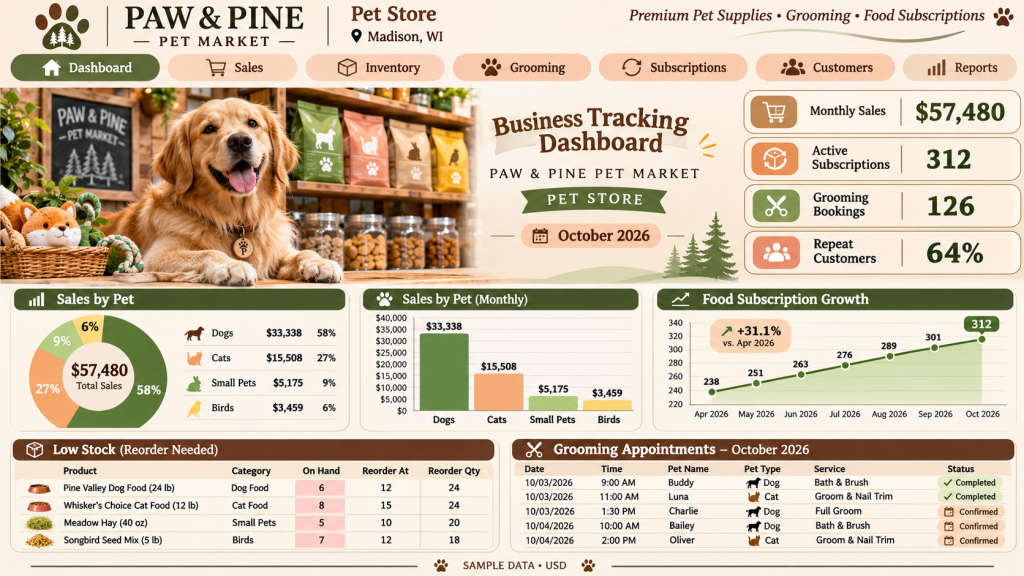
Preview is illustrative with fictional sample data. Open the downloaded workbook in desktop Microsoft Excel for the full, live version.
Pet Store Excel Dashboard and Business Tracker
- ▤ XLSX
- ↓ Instant download
Editable pet store workbook with USD reporting, a dashboard and a Store and care worksheet.
Watch the video
See how to edit a sample sale and check the updated monthly revenue.
This public video is a demonstration. Your paid files are delivered after payment.
You may also like
Browse the shop ↗
Real Estate & Property
Comparison price $15.00$9.99 33% off
↗
Mortgage Company Loan Pipeline Dashboard

What’s included
- One editable Microsoft Excel XLSX workbook
- Dashboard navigation and sample records
The Pet Store Excel Dashboard brings day-to-day records and USD reporting into a single workbook. It includes a dashboard, separate entry sheets and a reporting area for reviewing the period. Use it to review pet-supply sales alongside customer and care activity. The Store and care worksheet gives the operating records their own place alongside Sales, Expenses and the monthly reports. The sample business is Paw and Tail Market. Start with the sample records to see which entries belong in each area before you enter your own.
Set up a working copy for your pet store
Open Start Here, then review the entries on Settings. Keep the original workbook as a reference and save a copy for your business. Choose one reporting period for a practice run. Check the sample business details, the period you want to review and the relevant entries in Catalog. Use the same names for products or services when you record sales. The financial amounts in the workbook are in US dollars.
Pick a few representative records before replacing the sample entries. Include one completed sale and an expense from the same date range. Enter the correct dates and use a separate row for each record where the sheet calls for it. If your source records include canceled or incomplete transactions, use the status fields as described in the workbook. Save the practice copy so you can refer back to the example.
Use Sales and Store and care for separate records
Use Sales for the completed transaction and its direct cost, and Expenses for overhead. Review Inventory and Purchases where those sheets are relevant to the purchase, stock or work record. Keep the item or service name consistent with Catalog so it is easier to review later. When you record an activity, keep a reference to the sale or customer record if the two belong together.
Open Store and care when you need to record operating activity for the business. Look for fields such as Date, Reference, Workstream, Store visits. For example, check routine product purchases and remaining stock before restocking. Check the period on both the operating record and the sales entry before comparing them. This helps you distinguish a busy day from a day when completed sales actually increased. If you add sample records while testing, mark them in the working copy so they are easy to identify.
Review the dashboard and monthly reports
Use the Dashboard link on the working sheets to return to the main view on the Dashboard tab. Review Reports and Profit & Loss for the same reporting period before comparing totals. When a figure looks unexpected, check the original row, date, status and amount first. If two people update the workbook, agree on who records sales and who verifies inventory or operating entries for the period.
Use Customers, Appointments, Tasks and Calendar where those worksheets fit your workflow. Keep a consistent customer name or identifier and check the date format before making a report. Review what each worksheet asks you to enter and leave the calculated cells in place. Before starting a new period, save the last reviewed version separately so you can trace any later corrections.
Download the workbook
The customer download is a ZIP containing one editable Microsoft Excel XLSX workbook. Extract it before opening the file in desktop Excel. The product image is a preview of the dashboard design. The workbook contains the dashboard and its associated worksheets. Follow the instructions on Start Here for setup and use the navigation links to move between the worksheets and the dashboard.
Reviews
5.0 out of 5 · 15 reviews
Leo · Singapore
A useful option for anyone tracking pet store sales.
Joseph · United States
Pet Store is a clear theme for this tracker. A simple routine could start with pet store sales each week.
Fatima · Norway
Pet Store has a clear use case here, especially for pet store sales.
Moses · Denmark
This tracker fits a routine check of pet food and accessory stock.
Sophia · United Kingdom
Relevant to Pet Store and the day-to-day work behind pet store sales.